spacer eSignal logo
 |  Contact Us   

Customer Support

eSignal, Advanced GET Edition: New User Orientation


Welcome to the eSignal, Advanced GET Edition, New User Orientation. This guide is designed to help you get started using Advanced GET and introduce you to the available resources to help you find what you're looking for.

Downloading the Software

Before you download the software or start your service, to ensure that your PC will work with Advanced GET, you should review the eSignal, Advanced GET Edition, System Requirements, which you can get to by clicking on the "View" link on the Advanced GET Download page.

Downloading the Advanced GET software is very easy. Complete the steps listed below.

  1. Go to the Download page and click the "Download" button.

  2. Choose "Run" when the dialog box appears. (Once the file transfer is complete, the installation process will begin automatically.)

  3. Enter your Username and Password when prompted and continue clicking "Next" until you reach the final screen. Click "Finish" to complete installation.

If you are integrating Advanced GET with one of our broker partners, instructions are available in the brokerage FAQ.

Note: On those rare occasions when you do run into a problem while installing, alternatively, you can choose "Save" when the installer dialog box appears. This will save the Install file to your PC. This takes between 5 and 15 minutes, depending on your connection speed. Once this file is successfully saved on your PC, you simply double click to start the installer and follow step 3 as listed above.

Pages

When you first launch eSignal, Advanced GET Edition, you'll see a sample page titled "Welcome to eSignal". The eSignal workspace is saved in a file referred to as a Page.

All the windows within the workspace are saved in a single Page file. To create a new page, click "Page" from the main menu, followed by "New Page". This will close the existing default windows. Click "File", "New" and select one of the available window types (i.e., Quote Window, Advanced Chart, Time and Sales, and so forth). Repeat this process until you have customized your workspace to fit your needs. You have the option of renaming the individual windows within your workspace by clicking "File", "Rename Window Title".

Once you have entered all the desired symbols and adjusted the window sizes / positions, you'll want to save your workspace by clicking "Page", "Save Page As". Enter a new file name (make sure it's different from the existing default pages, or you may lose your work if you ever upgrade) and click "Save". Repeat this process if you wish to create multiple pages. To see more on Pages, please view the pre-recorded video titled "Pages and Layouts" on the eSignal Product Training page.

Back to Top

Advanced GET Dashboard

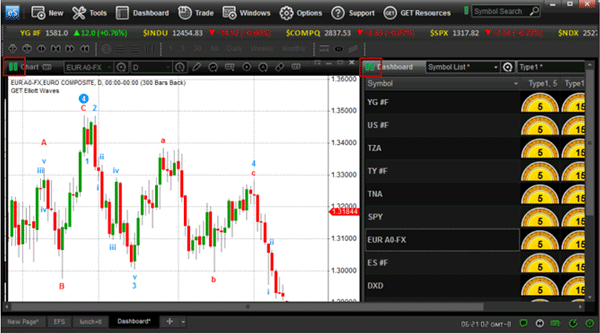
The Dashboard allows traders to conveniently monitor a portfolio of up to 20 symbols for the current condition of the market on different time frames based on a selected strategy.

Starting the Dashboard:

  1. Click "File" "New"; then click "New Dashboard", or
  2. Click the "New" icon on the Main Toolbar and then select "Dashboard". The image shown below is of the "New" icon:

The Dashboard Window

The Dashboard window displays colored gauges on the right side that indicate the status of a strategy in a range of periods: 5, 15 and 60 minutes, as well as daily, weekly, monthly default time frames. The window also has text boxes on the left to enter symbols. When you double left click on a gauge, a chart with the relevant time frame and the studies associated with the strategy being monitored by the Dashboad will be displayed. More than one Dashboard can be on a Page; however, only one Dashboard strategy can be used on that Page.

Editing Time Interval Gauges
The default gauges of 5, 15, 60, D and W can be changed to different time intervals by right clicking on any gauge on the Dashboard. The following menu will appear:

Left click on the "Edit Intervals" menu, and the following box will appear:

Add or remove the time intervals desired and click "OK".

The numbr of gauges allowed on a Page is 100. This means that, if you only have 2 time intervals, for example, you can monitor up to 50 symbols on one or more Dashboards on a Page.

Show Large Dashboard
The "Show Large Dashboard" selection from the Dashboard Strategy Menu will display the larger-sized dials and the "Thermometer":

The vertical bar in the quote area (the Thermometer) dynamically displays the trading range for the current day:

Selecting Dashboard Strategies
The first time you open the Dashboard, the default strategy will be the GET Stochastic. Every subsequent time you open the Dashboard, the last strategy used will be applied.

You can change the Dashboard strategy by left clicking the "Dashboard Strategy" selection on the menu bar and selecting the desired strategy.

CCI Trend Strategy: This strategy is used to indicate the trends by using the Commodity Channel Index (CCI). The CCI is a price momentum indicator that measures the price excursions from the mean price as a statistical variation.The CCI Trend Strategy works best on strongly uptrending or downtrending markets.

If a Dashboard gauge is green in color, the trend is up. If a Dashboard gauge is red, the trend is down. If a Dashboard gauge is yellow, the state is neutral because there is no perceived trend. If there is not enough data, the gauge will be gray with a white rim.

GET Stochastic Strategy: The GET Stochastic Strategy is designed to indicate when the market is overbought or oversold. The False Bar indicates the presence of a strong trend and that the standard overbought and oversold signals should be ignored.

If a Dashboard gauge is green in color, the market is considered oversold. If a Dashboard gauge is red, the trend is considered overbought.

Back to Top

Advanced GET Scanner

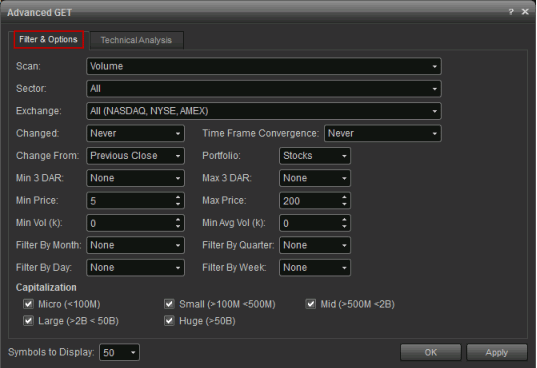
The Advanced GET Scanner can automatically apply technical indicators and fundamental criteria in real time to the entire market to find possible trading situations. It allows you to control your results by displaying information critical to you. These displays include company name, price change or percent change, daily or year high and low, volume or average volume, bid / ask spread and market capitalization. You can also access charts, news and company research directly from your scan page.

The Advanced GET Scanner can be opened within the eSignal program by clicking on File > New > Scan from the main menu bar.

Then, select "Advanced GET Scan" in the upper left corner of the Scan window.

Scan Type - The scans provide a list of stocks using the following criteria:

Sector - This criterion allows you to view stocks belonging to certain sectors or industry groups.
Show Ind. Groups - This one displays / turns off the "Industry Groups" listing.
Issues - The "Issues" criterion allows you to choose from a list of stock exchanges and IPOs or all stocks.
Min/Max Price - This one lets you set price brackets (i.e., minimum / maximum dollar value per share) to focus on stocks best suited to your trading needs.
Min/Avg Volume - "Min Volume" is used to select stocks whose premarket trade volume exceeds the specified value. For example: If "Min Volume" is set to 100k, this means a stock has to trade more than 100,000 shares since the market closed on the previous day to be included in the scan. "Avg Volume" is used to select stocks whose last 20-day average volume exceeds the specified value. For example: If "Avg Volume" is set to 2000k, this means a stock has to trade more than 2,000,000 shares (average) per day over the last 20 days to be included in the scan. This is helpful for weeding out very thinly traded stocks whose movements are not supported by sufficient volume for trading.
Market Cap - This criterion allows you to eliminate stocks whose market capitalization is outside the specified boundaries.
Average Range - "Average Range" allows you to filter price for a minimum or maximum 3-day average range.
Show Change From - This criterion calculates the Change and % Change from the Previous Close, Open, Previous Week, Month and / or Quarter.
Gainer/Loser - This one allows you to filter by None, Up or Down, according to Day, Week, Month or Quarterly.

Columns - This allows you to select additional information to be displayed for each issue that meets your criteria. Additional criteria are listed below:

Company Name Change Volume
$ VolumeSector
ParametersDaily High/Low
% Change Avg Volume
Market CapInd. Group
Year High Year Low
2 Day High 2 Day Low
3 Day High 3 Day Low
5 Day High 5 Day Low
10 Day High 10 Day Low
20 Day High 20 Day Low

Auto Refresh - "Auto Refresh" forces the database to be scanned again in the selected interval. Basically, it is a countdown time that will count down between 2- and 15-minute intervals. It will also display how much time is left to let you know how long before this occurs.
Emphasis - Parameters Changed - This one highlights parameters that have become positive within the selected amount of time. Use this one by choosing from "Never", "In Last 15 Minutes", all the way up to 2 days ago.
Time Frame Convergence - This highlights symbols whose parameters are positive in more than one time frame. You can use this one by choosing from "Never", "When all converge" or "When some converge".
Table - # Rows - This criterion allows you to set the number of issues that are displayed at one time; it can be from 10 to 50 rows.

Main/Xref Filters - With this criterion, you can choose from 15-, 30- and 60-minute intervals and / or daily or weekly time frames, which can be searched. If a search parameter is true for any one of the selected time frames, the issue will appear in the list.
Prebuilt Set - The prebuilt set allows you to specify which parameters you wish to use. A parameter set is a group of elementary search parameters that have been combined into a predefined trading strategy. "Prebuilt Parameter Set" is used initially to scan the market for issues matching its underlying parameter. If an Xref Parameter Set is selected as well, the results of the initial scan are further examined to see if they also match this second parameter set.
Studies - Filter 1,2,3 - This criterion allows you to specify filtering that is used in addition to or instead of the Prebuilt Parameter Set and / or Predefined Prebuilt Xref Parameter Set. These parameters are used to further refine the trading strategy embodied by the Main/Prebuilt Xref Parameter Set or to create your own trading strategy.
Relative Strength - This setting allows you to select, display and filter by Relative Strength.
Display Relative Strength - This allows you to display the selected Relative Strength information in the results table.
Period - This allows you to select the period over which the Relative Strength is calculated – 3 months, 6 months, 12 months, or a composite of all of these periods.
Compared To - This is the criterion that lets you select the other issues that an issue is compared against – just issues within the same group, the same sector, or against all other issues in the market.
Filter Results - This allows you to filter issues based on the selected Relative Strength.
Above - This criterion tells the program to show only those issues whose Relative Strength is greater than the given number.
Below - This criterion tells the program to show only those issues whose Relative Strength is less than the given number.
Outperform - This criterion tells the program to show only those issues whose Relative Strength is greater than that of the selected indices.
Underperform - This criterion tells the program to show only those issues whose Relative Strength is less than that of the selected indices.

Export to Dash
To export the scan results to the Dashboard using the embedded scanner, you must have an embedded Advanced GET Scanner and a Dashboard open from File => New. In the image shown below, we entered the name "DASH01" in the "List Name" box (Step 1). We clicked anywhere within the Dashboard window, so "Dashboard" would display up in the menu. We then clicked the word "Dashboard" (Step 2) and, then, "Dynamic Symbol List..." as shown in Step 3.

A window called "Dynamic Symbol List" opens (Step 4). Click the drop-down arrow and select "DASH01"; then click "OK", and all symbols are exported into the Dashboard.

Using the Advanced GET Scanner to Spot Trading Opportunities
The Advanced GET Scanner searches the entire U.S. stock market in a matter of seconds based on the criteria you entered. The scanner lets you access critical price performance data as soon as the markets are open. Every time you run the scanner, you get a concise, easy-to-read list of stocks that are trading candidates. And, the list is based on the latest real-time, streaming market data and set up to find the signature Advanced GET set-ups.

Learn more about the Advanced GET Scanner.

Back to Top

Advanced GET Studies

The Advanced GET Studies provide unique insights into technical analysis. Taken together, they can provide an objective, rule-based approach to trading. Adapted for use in a variety of techniques, the Advanced GET Studies were developed to assist the professional trader time entries and exits, tighten stops and identify new trading opportunities. Here is a list of the available Advanced GET Studies:

  • Auto Gann
  • Auto Trend Channels
  • Bias Reversal
  • Elliot Trigger
  • Elliot Waves
  • Keltner
  • Joseph Trend Index (JTI)
  • Moving Average
  • OSC
  • Parabolic
  • Pivots
  • Price Clusters
  • RSI
  • Stochastic
  • StoRSI
  • Time Clusters
  • TJ's Web
  • Trade Profile
  • True High/Lows
  • VWAP
  • Williams %R
  • WoodiesCCI
  • XTL

Access complete documentation on the Advanced GET studies.

Advanced Charts
The Advanced GET studies are accessed via the Advanced Charts features within eSignal. The Advanced Charts offer an extremely flexible user interface and include a full array of line drawing tools, advanced analytics and a formula engine that lets you create your own studies.

To open a new Advanced Chart, click "File", "New", "Advanced Chart".

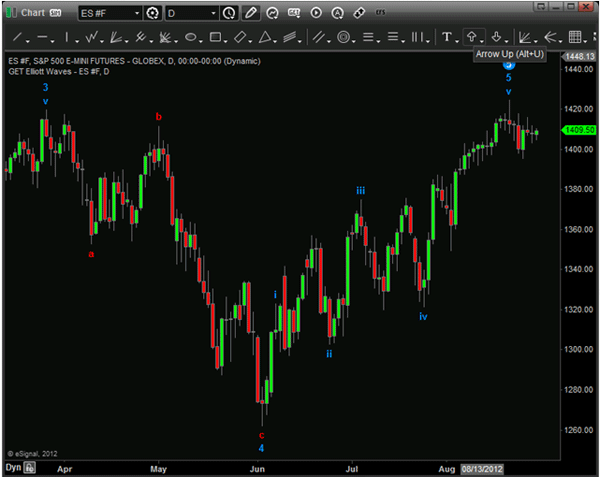
Right click within the newly opened Advanced Chart and select "Advanced GET Studies". Select the study you wish to add. In this example, we will add Elliott Waves.

Your chart should look similar to this:

Back to Top

Entering Symbols and Changing Intervals
To enter a symbol in an advanced chart, type any letter on your keyboard. This will open the "Change Symbol" box, where you can enter a new symbol and interval. To change the interval (if this dialog box isn't already open), type a number on your keyboard ("5" represents a 5-minute interval) or hit the comma (,) key.

Other intervals include "D" for Daily, "W" for Weekly and "M" for monthly. Read more about tick-based interval charts.

Chart Type
Select from a variety of chart types, including Bar, Candlestick, Line and Area Charts. Kagi, Point & Figure, Point Break and Renko Charts are also available. To change an advanced chart's chart type, right click the chart and select "Chart Type".

Applying Time Templates
Time templates control the start and end times, as well as the number of days / bars displayed on the chart. Right click in an advanced chart and click "Time Templates" to select a default template. Specific time templates, such as 9:30 – 16:00, will not work with Daily Charts or Tick Charts. Learn more about how to create a new template.

Tools Menu
Right click to access the "Tools" menu, which includes Back Testing, Price Filtering, Data Export, Bar Editor and Replay Mode.

Cursor Window
The Cursor Window is the small information panel within an advanced chart that displays information, such as the Symbol, Date, Price, Open, High, Low and Close. The Server Status Bar is displayed on top of the Cursor Window with an "OK" on a green background.

Read more about the Cursor Window.

Toolbars
Several toolbars are available in advanced charts. These toolbars can be toggled on and off by clicking "View" from the main menu and selecting the appropriate toolbar. Toolbars are "dockable". This means that they can be dragged or moved to a different part of the screen. Read a detailed explanation of the various toolbar icons.

Advanced Chart Toolbar
The Advanced Chart toolbar allows for shortcuts, such as changing the chart type, scaling in the chart, adjusting the bar width and spacing, removing items from the chart and more.

Line Toolbar
The Line toolbar allows quick access to the drawing tools, Fibonacci lines, the text tool, the eraser and the "zoom in / out" feature and also lets you move and copy lines.

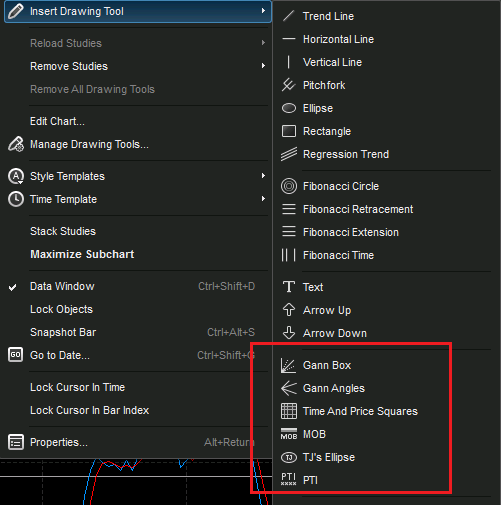
Advanced Line Toolbar
The Advanced Line toolbar requires a subscription to eSignal, Advanced GET Edition, and will be grayed out unless you are subscribed to Advanced GET.

The Favorites Toolbar
The Favorites toolbar allows you to set shortcuts for frequently used stocks and intervals.

Link - This feature allows the user to link windows based on color.
Properties - The properties let users remove folders and shortcuts from the bar.
Add- With the "Add" function, the user can create new shortcuts.

The Favorites toolbar displays two folders, "Equities" and "Other Intervals", where additional shortcuts can be added.

Back to Top

Window Types

There are more than 20 distinct window types in eSignal, Advanced GET Edition, such as the Quote Window, Time and Sales, Advanced Charts, Market Depth, News Manager and more. In the following section, we'll be covering the basics of some of the more popular window types.

Quote Window
The Quote Window displays information in a spreadsheet-like format. Enter the symbols you are tracking into the Quote Window and choose from more than 180 customizable fields, including Last, Bid / Ask, 52 Week High / Low, Electronic Volume, key Fundamental data, and much more! View a pre-recorded video titled "Quote Window" on the eSignal Product Training page to learn more about it.

Opening a New Quote Window
From the menu bar, click on "File", "New", "Quote Window". A default Quote Window will open. Type a symbol and press "Enter".

Adding a Field (Column)
Right click any column heading (for example, "Last"), and select "Add Field".

A "Select Field" menu will appear. Choose from more than 180 available field headers. You can also choose to delete or replace a field by right clicking any column heading. Re-arrange the order of any row or column by grabbing it with the left mouse button and dragging to the new column or row.


Adding Text or Comments to a Row
You can customize your Quote Window by adding text to a specific row by typing "#", followed by the word or comment you wish to add. Click the down arrow on your keyboard to see the change.

Sorting by a Field (Column)
Left click any column heading to begin sorting (i.e., Symbol, Last, Change, High or Low). Click "Yes" when prompted. The fields will sort in ascending or descending order with each left click.

The Right Click Menu
Right click on any symbol you have entered into the Quote Window. You'll have the option of opening other window types, such as Advanced Charts, Market Depth and Time and Sales. You can also find news or set alerts on any symbol that you right click.

Changing Colors
Click on the Quote Window to make it the active window. Go to "Quote Options" on the menu bar; then click "Colors". Highlight the line for the field that you wish to change; then click "Change Color" to open the color menu.

Time and Sales Window
This window displays a timestamp for each Trade, Bid and Ask Price, as well as Size. To open a new Time and Sales Window, click "File", "New", "Time and Sales" from the main menu. Enter the desired symbol in the top left box and hit enter. This window can also be launched by right clicking a symbol from a Quote Window.

Date / #Days Ago Field
Use this feature to specify a specific date or number of days back (30-day limit).

Time Field
Specify the starting time and press "Enter". Scroll to the bottom of the window to find the starting point.

Price / Range Field
This field gives all data within a range for the specific day / time filters used or will search for a specific price.

To display all the items at one price, just type that one price in and hit "Enter". If you need a range of prices, type in the minimum price first, followed by a dash and then the maximum price, followed by "Enter". You can also specify greater than or less than a given price by using the ">" or "<" characters.

Time and Sales Properties
To pull up the Time and Sales Properties window, from the main menu, click "Time and Sales", "Properties". The Properties window allows you to change the colors, font, view style and direction of real-time data.

Colors: To change the color of a line, select the line and then choose the foreground and background colors.
Font: To change the font used, click the "Font" button and then choose the font, font style and size.
View: There are three ways to view data in the Time & Sales Window:

Short View - This view combines the bids, asks, and trades all in the same columns.
Long View - The long view separates the bids and asks from the trades. Quotes are on separate lines from the trades.
BBO View - This third view separates the bids and asks from the trades, but quotes are on the same lines as the trades.

CID Support
Corrections, Insertions and Deletions (CIDs) are available in the Time and Sales window and can be viewed under the "Conditions" column. Learn more about CIDs.

Back to Top

Symbol Search and Formats

Wherever possible, eSignal, Advanced GET Edition, uses standard exchange symbology. We have separated the formats into their respective categories, so they're easier to follow.

See our Symbol Directory for a list of all A - Z listings and Symbol Formats for specific exchange codes.

North American Stocks: For U.S. stocks, use the commonly known symbols for them (IBM, GE, GM, etc.). If you are looking for a warrant, class stock, preferred stock, or other special issue, or for Canadian stocks, you'll need to add a two-character exchange identifier.

European, African, and Asia / Pacific Equities: For these symbols, use the same format as with U.S. stocks but add a 3-character exchange identifier to the end of the symbol.

North American Futures: Standard format for North American futures is a two-character symbol, month code, last digit of the expiration year. (ES Z9 is the CME E-Mini contract for Dec 09.) (Note: For continuous contracts, replace the month and year code with #F [ES #F].)

European and Asia / Pacific Futures: These symbols use the ame format as U.S. futures, but we add a 3-to-4-character exchange identifier on the end. (Note: Currently, eSignal, Advanced GET Edition, does not have continuous contracts for international futures data.)

Forex: Standard format for foreign currency symbols is a three-character symbol, space, spot code, dash, then FX. By default, each is the cross rate for the U.S. Dollar. To view other cross rates, combine the 2 Forex symbols. For example:

  • EUR A0-FX - Euro / U.S. Dollar
  • EURGBP A0-FX - Euro and British Pound

Options: Per the Options Symbology Initiative, the format is as follows:

O:(Underlying Symbol), a space, (Two Digit Year), (Put/Call and Expiration Month Code), (Strike Price)

Some examples:

O:MSFT 10D25.00 (Microsoft April 2010 Call at 25.00)
O:IBM 10S100.00 (IBM July 2010 Put at 100.00)

In addition, there’s an optional regional ID code and an exchange day identifier, used for quarterly, weekly or any expiry other than the third Saturday.

O:(Underlying Symbol), a space, (Two Digit Year), (Put/Call and Expiration Month Code), (Strike Price), Day Identifier, =Regional Exchange ID

Some examples:

O:DIA 10F74.00D30 (DIA March 30, 2010 74.00 Call - Quarterly expiration)
O:IBM 10S100.00=B (IBM July 2010 Put at 100.00 from the Boston Stock Exchange)

Long Form: Root symbol, space, three-letter month, strike price, then C for "Call" or P for "Put" (IBM OCT100P)
Short Form: Root symbol, space, the month code, then the strike price code (IBM VT)

Indices: Indices are divided into 3 groups: eSignal Indices, World Indices and International Indices.

  1. eSignal Indices: Each symbol begins with a $ sign (example: $INDU is the Dow Jones Industrial Average). Please see the Symbols Guide - eSignal Indices for more information.
  2. World Indices: This is a collection of indices from around the world available in a single bundle as an add-on service.
  3. International Indices: Many of the European and Asia / Pacific exchanges separate equities and indices into separate and distinct categories. Some charge an additional fee for indices as well.

For more information, please see Symbols Formats and our Symbols Directory.

Back to Top

Other

Account Management / Billing
eSignal offers online Account Maintenance for those who wish to manage their own account(s). Account Maintenance provides 24 / 7 access to your account information, as well as many other benefits:

  • Add / delete services (exchanges, news services, etc.)
  • Pay your bill
  • Change passwords
  • Restart an account
  • View billing history
  • Update credit card

Find out more about Account Maintenance and General Billing.

Product Training Video Library
In addition to the video clips previously referenced, we have archived a host of other eSignal and Advanced GET-related courses. Please check out the selection of pre-recorded videos on the eSignal, Advanced GET Edition, Product Training page or the eSignal Product Training page.

eSignal Forums
The eSignal Forums are a powerful tool for learning about eSignal, Advanced GET Edition, and for interacting with other traders. The forums are a great place to talk about customizing formulas, new trading strategies, how to get the most out of Advanced GET and much more. It's an essential communication tool to stay on top of current events and to be a part of our community of users. To read and respond to all posts, register for the eSignal Forums today. Registration is free.

By registering for our forums, you'll automatically be registered for our File Share area. File Share is a cross between a public library and a private storage room. You can use the File Share area to post screen shots or charts to share or as a way to save important files in case you need to access them while traveling.

eSignal, Advanced GET Edition, KnowledgeBase
Visit the eSignal, Advanced GET Edition, KnowledgeBase to search for any Advanced GET-related topic and find answers to frequently asked questions.

CME Group Fee-Waived Globex Data
We have partnered with a number of brokers and the CME to waive the normal CME Globex exchange data fees, as long as a set number of requirements are met. Learn more about this exciting CME exchange data fee waiver program.

Learn How to Trade with eSignal, Advanced GET Edition
Need more hands-on training? We offer a variety of classes for every level of trader.

Important Announcements and Network Status
For information about your Advanced GET service or the status of the network, you can access a special section of the eSignal Forums.

Contact Us
To contact eSignal Technical Support or Customer Service, please visit our Contact Us page.